How to Print Coloring Pages at Home

Home  /  Coloring Articles  /  Coloring Pages for Stress Relief and Anxiety: Research-Backed Guide

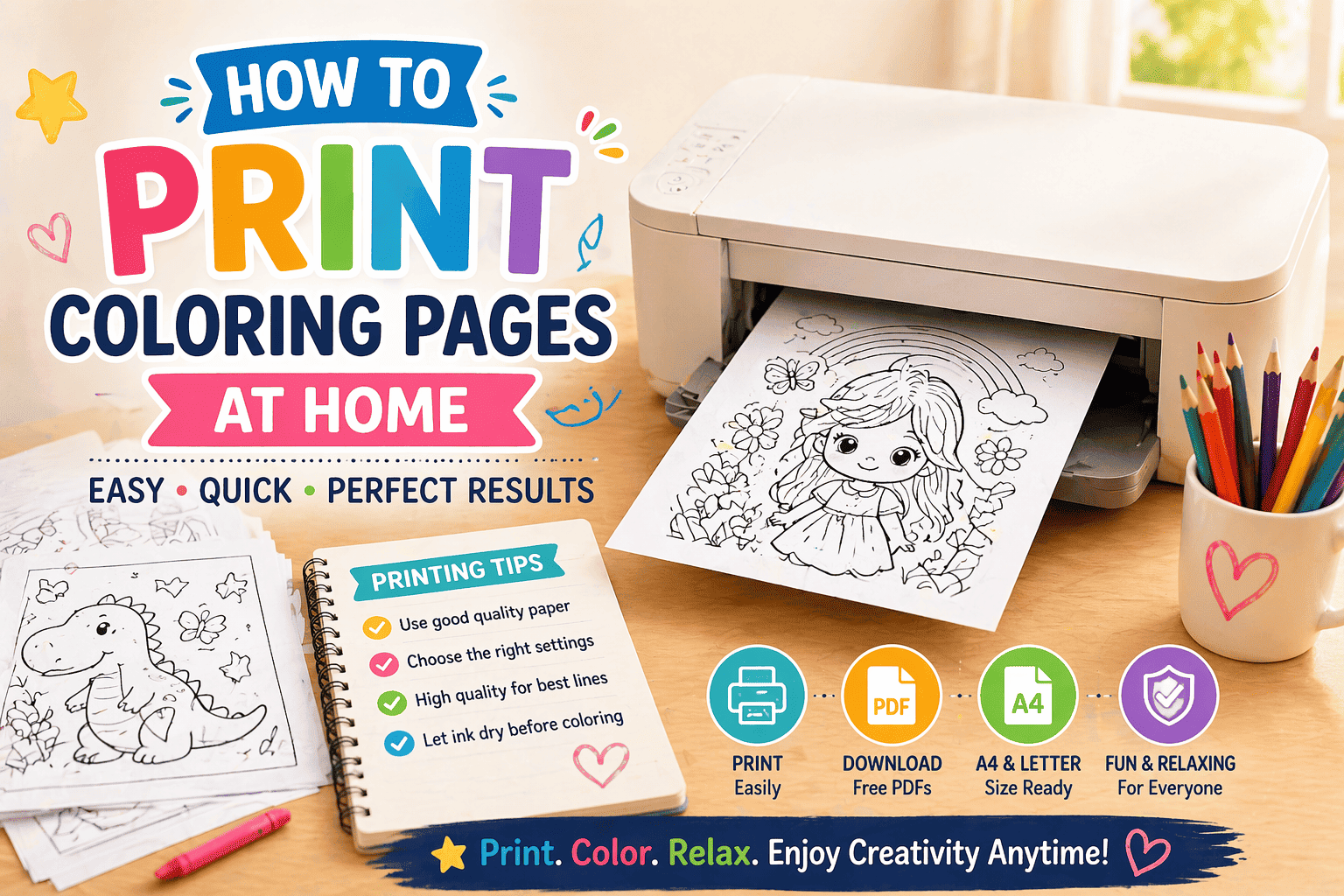
How to Print Coloring Pages at Home – a practical guide covering everything from file format selection and printer settings to paper choice, common printing problems, and mobile printing – so every page you download from ColoringPagesOnly.com prints cleanly, crisp, and ready to color.

Printing coloring pages sounds simple until something goes wrong: lines come out faint, the image gets cut off at the edges, the marker bleeds through the paper, or the page looks muddy instead of sharp. Every one of these problems has a specific cause and a specific fix. This guide covers all of them. Once your pages are printing correctly, browse our full printable coloring pages collection – every design is optimized for home printing and available as a free PDF download.

How to Print Coloring Pages at Home

PDF vs JPG vs PNG – Which File Format to Download

ColoringPagesOnly.com offers coloring pages in both PDF and PNG/JPG formats. Choosing the right one before you print saves time and produces better results.

Download PDF when:

  • You are printing directly to paper from a computer
  • You want the sharpest possible line quality
  • You are printing on A4 or Letter paper at standard size
  • You are printing multiple pages at once

PDF is the preferred format for home printing. PDF files embed the image at its full resolution and include precise page-size information that tells your printer exactly how to scale and position the content. A PDF printed at 100% scale will always fill the page correctly, with no guesswork required.

Download PNG or JPG when:

  • You are printing from a phone or tablet
  • You want to resize the image before printing (larger or smaller than one page)
  • You are using the image in a document, presentation, or digital project
  • You are coloring digitally in an app that accepts image files

The key difference in practice: PDF files know they are A4 or Letter size and instruct the printer accordingly. PNG and JPG files are just images – the printer does not know the intended size and will make its own decision unless you specify. This is the most common cause of images printing too small, too large, or incorrectly centered.

Printer Settings: Step-by-Step

Getting printer settings right takes 30 seconds and makes a significant difference in output quality. These settings apply to Windows (Print dialog) and Mac (Print panel), as well as most printer software.

Step 1: Open the print dialog correctly

For PDF files: Open in Adobe Acrobat Reader (free) or your browser’s built-in PDF viewer. Do not print directly from a file manager or email attachment – these bypass the PDF’s built-in page size data.

For PNG/JPG files: Open in your computer’s default photo viewer (Photos on Windows, Preview on Mac) before printing. These applications give you proper scale and fit controls that browser printing does not.

Step 2: Set Page Scaling to “Fit to Page” or “Actual Size”

This is the single most important print setting for coloring pages.

“Fit to Page” (sometimes called “Fit” or “Scale to fit”) scales the image to fill the printable area of your paper while maintaining proportions. Use this for most coloring pages – it ensures the image fills the page without being cut off.

“Actual Size” or “100%” prints the image at its original size. Use this for PDF files where the designer has already set the correct page size. Do not use “Actual Size” for PNG/JPG files – they may print very small if the image pixel dimensions are small.

Avoid “Shrink to Printable Area” only – this setting shrinks the image slightly to avoid the printer’s margin zone, sometimes producing a noticeably smaller image than intended.

Step 3: Set Print Quality

Setting Use when
Draft / Economy Testing layout only – never for final prints
Standard / Normal Adequate for most coloring pages with bold lines
High / Best Recommended for detailed pages with fine lines
Photo Not needed for line art – wastes ink without improving results

For coloring pages, High Quality is the right choice in most cases. Standard quality is acceptable for bold, simple designs – for example, coloring pages for kids with thick outlines print well at Standard. Draft mode produces visibly degraded lines that are harder to color within.

Step 4: Paper Size

Set paper size to match the paper in your printer:

  • Letter (8.5 × 11 inches) – standard in the United States
  • A4 (210 × 297mm) – standard in most other countries

If the paper size setting does not match the paper loaded, the image will print misaligned, partially cut off, or incorrectly scaled. Always check this setting before printing a new batch.

Step 5: Color vs Black and White

Coloring pages are black-and-white line art. Select Black and White or Grayscale in your printer settings – this uses only the black ink cartridge rather than combining color inks to approximate black. The result is sharper, darker lines that color more cleanly.

Printing in color mode for a black-and-white image wastes color ink, produces softer lines (because color printers mix multiple inks to create black), and sometimes results in lines with a slight color cast.

Paper Guide: Choosing the Right Paper

Paper choice matters as much as printer settings – especially once you have decided which coloring tools you will use. Using the wrong paper for your tools can cause bleed-through, buckling, or surfaces that resist the tool rather than accepting it smoothly.

Crayons and Wax-Based Tools

Recommended weight: 80–120gsm

Standard printer paper (75–80 gsm) works acceptably for crayons; wax does not bleed through. However, the smooth surface of standard printer paper does not grip wax particularly well, which can make coverage feel uneven. A slightly heavier paper with a little more tooth (surface texture) produces noticeably better crayon results. This is especially worth noting for coloring pages for kids since crayons are the most common tool for young children.

Good options: basic copy paper for quick prints, and slightly heavier multipurpose paper (90–100 gsm) for pieces you want to keep.

Colored Pencils

Recommended weight: 90–120gsm

Colored pencils require a paper surface with some tooth – a slight roughness that the pigment can grip. Standard printer paper is on the smooth side for colored pencils, which makes layering and blending more difficult. A 100–120 gsm paper with a slightly textured surface provides a better pencil grip, allows more layers before the surface fills (glazes over), and holds up better to repeated passes. For a full guide on getting the best results from colored pencils, see our coloring tips for beginners.

Markers (Water-Based)

Recommended weight: 120–160gsm

Water-based markers are the most paper-demanding of the common coloring tools. They deposit significant moisture, which causes lighter papers to buckle and bleed through. For water-based marker coloring on single sheets, 120gsm is the minimum workable weight. For pieces meant to be displayed or kept, 160gsm produces results that lie flat and do not bleed. Adult coloring pages with their fine detail particularly benefit from heavier paper when markers are being used.

Markers (Alcohol-Based: Copic, Prismacolor, etc.)

Recommended weight: 160–200gsm, or dedicated marker paper

Alcohol-based markers bleed through almost any standard paper. They are designed for use on marker-specific paper (bleed-proof, non-absorbent surface) or heavy cardstock. If you use alcohol-based markers frequently, printing your coloring pages on 160–200 gsm paper significantly reduces bleed-through, though dedicated marker paper produces the best results.

Important: Place a sheet of scrap paper beneath any page being colored with alcohol-based markers, regardless of paper weight. Bleed-through onto a table or the page below is almost guaranteed on anything lighter than 200gsm.

Watercolor Pencils

Recommended weight: 160–200gsm minimum, ideally cold-press watercolor paper

Watercolor pencils, when activated with a wet brush, behave like watercolor paint – they deposit significant water that will warp and buckle any paper not designed for wet media. For occasional use, 160gsm laser paper can work for small areas. For serious watercolor pencil work on printed coloring pages, printing on pre-cut watercolor paper (180–300gsm cold press) produces professional results. Our mandala coloring pages are particularly well-suited to the watercolor pencil technique due to their structured, symmetrical patterns.

Solving Common Printing Problems

Lines are faint or gray instead of black

Cause: Print quality set to Draft or Standard, or the black ink cartridge is low.

Fix: Change print quality to High. Check ink levels – if the black cartridge is below 15%, lines will begin degrading. If printing in Color mode, switch to Black and White/Grayscale.

The image is cut off at the edges

Cause: Page scaling set to “Actual Size” when the image is slightly larger than the printable area, or paper size mismatch.

Fix: Switch to “Fit to Page” scaling. Verify that the paper size setting matches the actual loaded paper. Check that the paper is correctly loaded in the tray – misloaded paper causes consistent edge cutoff.

Image prints too small, surrounded by large white margins

Cause: PNG or JPG file printing at “Actual Size” when the image pixel dimensions are small, or the scaling is set too low.

Fix: Switch to “Fit to Page.” If printing from a browser, look for a Scale percentage field and set it to 100% or higher. In Windows Photos or Mac Preview, choose “Fill Entire Page” or set scale to 100%.

Page looks blurry or pixelated

Cause: Low-resolution source image, or printing at a very large scale from a small image.

Fix: Download the PDF version instead of JPG/PNG – PDF files are vector-based or high-resolution raster and maintain sharpness at any print size. If only JPG/PNG is available, print at 100% rather than scaling up.

Ink bleeds through the paper

Cause: Paper too light for the coloring tools being used, or marker paper not appropriate for the ink type.

Fix: Use heavier paper – 120gsm for water-based markers, 160gsm+ for alcohol-based markers. Place scrap paper underneath when using markers, regardless of paper weight.

Paper buckles or warps after coloring

Cause: Too much moisture from water-based markers or watercolor pencils on lightweight paper.

Fix: Use 160gsm+ paper for wet media tools. Press finished pages flat under a heavy book for 24 hours to reverse mild buckling.

Print comes out yellowish or has a color cast

Cause: Printing in Color mode rather than Black and White mode.

Fix: Select Black and White or Grayscale in print settings. This uses only the black ink cartridge and produces clean, neutral black lines.

Printing from a Phone or Tablet

Printing coloring pages from a mobile device is straightforward once you know the steps.

iPhone and iPad (AirPrint)

  1. Open the coloring page in Safari or your browser
  2. Tap the Share button (box with arrow)
  3. Tap Print
  4. Select your AirPrint-compatible printer
  5. Set paper size and number of copies
  6. Tap Print

For PDF files on iPhone/iPad, open in the Files app first, then use Share → Print. This provides better page-scaling control than printing directly from Safari.

Android

  1. Open the coloring page in Chrome
  2. Tap the three-dot menu → Print
  3. Select your printer (Google Cloud Print or direct Wi-Fi printer)
  4. Set paper size to A4 or Letter
  5. Enable Fit to page in the options
  6. Tap the Print button

For better results on Android, download the PDF first, then open it in Adobe Acrobat Reader (free) and print from there. Acrobat provides the same print controls as the desktop version.

If your printer is not wireless

Print from your phone to a non-wireless printer by:

  • Emailing the coloring page to yourself and printing it from a connected computer
  • Saving to Google Drive or iCloud and accessing from a computer
  • Using a USB OTG cable to connect the phone to the printer (Android, some models)

Printing Tips for Classrooms and Teachers

Teachers printing coloring pages for classroom use face different challenges than home printing – primarily volume, cost, and time. Our educational coloring pages collection is specifically organized for classroom use, covering subject-based themes from alphabet and numbers through science and geography.

Print in batches. Most school printers handle PDF batches efficiently. Download multiple pages into a single folder and print the batch at once rather than opening files individually.

Use draft mode for classroom distribution, high quality for display pieces. For pages children will color at their desks and take home, Standard quality is sufficient and significantly reduces ink cost. For pieces destined for bulletin boards or display, print the same page at High quality.

Print on both sides when appropriate. Single-sided coloring pages can be printed back-to-back to halve paper use. Verify that marker or crayon bleed-through from the front does not compromise the back – test with your class’s typical coloring tools first.

Store printed pages flat. Pre-printed pages stored in a stack for more than a day should be kept flat under a light weight. Pages stored loosely in a tray develop curl that makes them harder to color and display.

Set a default “coloring pages” print profile. Most school printer software allows users to save custom profiles. Create one with: Black and White, High Quality, Fit to Page, Letter/A4. This eliminates the need to reconfigure settings each time.

For guidance on choosing age-appropriate pages for your class, our coloring pages by age guide covers developmental considerations from ages 1 through 12.

FAQs

Can I print coloring pages on regular printer paper? Yes – regular 75–80 gsm printer paper works adequately for crayons and light-colored pencils. For markers (especially alcohol-based) or watercolor pencils, heavier paper produces significantly better results and prevents bleed-through.

Why do my printed lines look fuzzy? The most common cause is printing in Color mode rather than Black and White mode, which causes the printer to mix multiple inks to produce black, resulting in softer lines. Switch to Black and White/Grayscale in print settings.

Can I print coloring pages larger than one page – poster size? Yes. In your print settings, look for “Poster” or “Tile” printing options. These split the image across multiple sheets that you tape together after printing. Set the desired final size (e.g., 2×2 pages = approximately A2 size) and the printer software handles the tiling automatically.

How do I print without the website header or footer appearing on the page? When printing from a browser, look for a “Headers and Footers” checkbox in print settings and uncheck it. Alternatively, download the PDF file and print from Acrobat or Preview – PDF printing never includes browser headers.

My printer says it’s out of black ink, but there’s still some left – can I keep printing? Printer ink-level warnings typically trigger at 10–15% remaining, not at empty. You can often continue printing at acceptable quality for some time after a low-ink warning. However, once lines begin appearing gray or faint, replace the cartridge. Continuing to print with very low ink levels results in poor quality regardless of settings.

Is it cheaper to print at home or at a print shop? For small quantities (1–10 pages), home printing is typically cheaper when convenience is factored in. For larger quantities (20+ pages), print shop rates (typically $0.05–0.10 per black-and-white page) may be more economical than home printing, particularly if you use premium paper. For classroom quantities, school copiers with institutional paper and toner costs are significantly cheaper than home printing.

Can I reuse printed coloring pages? Standard printed pages cannot be reused after coloring. However, placing a printed page inside a plastic sleeve (document protector) allows dry-erase markers to be used and wiped clean repeatedly – a cost-effective solution for frequently used pages, particularly in classroom settings with young children.

Browse all free coloring pages at ColoringPagesOnly.com – every page is available as a free PDF download, ready to print at home. For the best coloring experience, see our full collection of printable coloring pages, optimized for home printing.

Nam Nguyen – CEO

Hello and welcome! I’m Nam Nguyen, the creator and founder of Coloringpagesonly.com. Driven by my love for art and the endless wonders of color, I started this platform to spark creativity and joy in people of all ages. Join me on this colorful journey, and let’s explore the magic of art together!

Today Articles